
cPanel Metrics Editor
The Metrics Editor in cPanel allows you to choose which statistics programs analyze your website traffic. You can select different metrics tools to process your server log files and generate traffic reports.
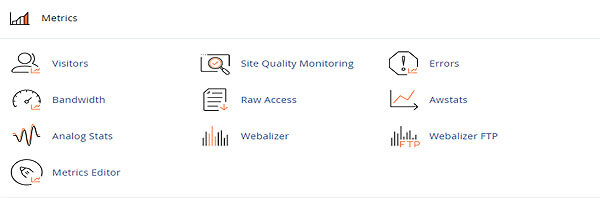
Available Metrics Programs
Webalizer
- Generates detailed monthly statistics
- Shows page views, hits, and bandwidth usage
- Displays top referring URLs and search terms
- Provides country-level visitor data
Webalizer FTP
- Analyzes FTP server log files
- Tracks file transfers and FTP activity
- Useful for monitoring FTP usage
AWStats
- Advanced Web Statistics program
- More detailed than Webalizer
- Real-time statistics updates
- Browser and OS detection
- Robot/spider tracking
How to Configure Metrics
- Log into your cPanel account
- Navigate to the Metrics section
- Click on Metrics Editor
- For each domain, select the checkbox for the programs you want to use
- Click Save to apply your selections
Understanding the Interface
- Each domain on your account is listed separately
- Checkboxes indicate which programs are active
- A lock icon appears if your host restricts program selection
Best Practices
- Enable AWStats for the most comprehensive data
- Use Webalizer for quick monthly summaries
- Enable Webalizer FTP if you use FTP frequently
- Running multiple programs provides different perspectives on your traffic
Viewing Your Statistics
After enabling metrics programs, access your stats through:
- cPanel → Metrics → Webalizer
- cPanel → Metrics → AWStats
- cPanel → Metrics → Raw Access (for log files)
Note
Statistics may take 24-48 hours to populate after enabling a new metrics program. Historical data may also take time to process.
Need help understanding your website traffic? Contact our support team.